You supply the intent; the keyboard organizes everything else.
During morning rush hour on Guangzhou Metro Line 3, you can always see rows of young people holding up their phones, typing a passage into a chat box only to delete it, delete it and revise it again. Even trying to slack off with voice-to-text often isn't restful: before you speak, you first have to straighten out the information scattered across various group chats and mentally draft it; once your tongue slips midway or a filler word sneaks in, a long string of verbal slop jumps onto the screen, and in the end you still have to stop and nudge the cursor to delete and fix it word by word. We have long been used to humans accommodating machines. But in the era of large AI models, why can't it be reversed—why can't machines start accommodating humans' real way of expressing themselves? After recently upgrading my main input method to iFlytek IME 16.0.1, I found that this vision is starting to become reality. The newly released third-generation voice input "Intent-to-Draft" and the personalized AI keyboard pack information organization, long-term memory, and scene skills into the AI keyboard, so that users only need to state their intent to get a draft they can edit and use directly. When a keyboard finally learns to accommodate human laziness, slips of the tongue, and vocabulary that runs dry, how much trouble can everyday communication shed? I took the most agonizing scenarios from work and life and ran a round of hands-on testing. The most exhausting part of the old "human accommodates machine" way was that the keyboard had no memory—information lay scattered across group chats, screenshots, and mini-programs, and every time you switched chat partners you had to bounce between screens and paste repeatedly. In iFlytek IME 16.0's "Intent-to-Draft," the keyboard learns to take notes on your behalf: once it has processed a piece of text or a screenshot for you, the background automatically extracts the times, people, and requirements, storing them as "task-level information cards." Later, while the task is live, whenever you switch to any chat box, you just tap "Hand It to AI" at the top of the keyboard and say a short intent; it automatically brings in the earlier information together with your "long-term memory" preferences, delivering the finished draft straight into the input box. During Double 11 preparations, the boss, Mr. Wang, suddenly messaged on WeChat asking how the revamp of the membership mall was coming along. In the past you would first have to dig through the project group, then check the Feishu sheet; now you just hand the information to the keyboard, say one sentence, and you can turn in the assignment. I first screenshotted the project progress and promotional schedule from the Feishu group—which included the completed payment-link stress test, a coupon popup awaiting fixes, tomorrow afternoon's drill, and the Friday midnight launch—then switched back to the boss's WeChat window, opened "Hand It to AI," and said: "Based on the screenshot I just took, help me report the current progress of the membership mall revamp to the boss; keep the tone polite." Immediately, the keyboard generated a clearly structured report that covered the overall progress while organizing the test results, pending fixes, and launch schedule in perfect order. More interestingly, iFlytek IME organized the content according to my personal reporting habits, because I had previously instructed "Hand It to AI" that when reporting to the boss I should state the conclusion first, then itemize core progress and to-dos, keep it within 150 characters, with a crisp, professional tone. The keyboard said at the time that it had memorized this requirement. Now, reporting again, it could organize the content based on my personal expression preferences in long-term memory, sparing me the trouble of restating my writing requirements each time. Having read this far, some may wonder how the AI keyboard is actually enabled. It takes only one setup. Upgrade iFlytek IME to 16.0.1 and set it as the phone's default input method; summon the keyboard in any chat box, tap the button bearing the iFlytek "Xun" mark in the upper-left corner, swipe to the bottom of the expanded function menu, find and enable "AI Keyboard Mode." Once enabled, besides long-pressing the bottom space bar for everyday voice input, a colorful AI button appears in the keyboard's upper-left corner. Tap it, and you can state your intent directly by voice or text, letting the keyboard help understand the information, organize the content, and generate a reply. One operational detail worth noting: Android and iOS read screenshots differently. Android users, after taking a screenshot manually, open "Hand It to AI" within one minute and say "based on my screenshot" along with the specific request; the system can automatically read the most recent screenshot or several. If you need old images from the album, say "upload screenshot" to bring up the upload entry and select manually. iOS users need to first say "based on my screenshot" or "based on my picture" to "Hand It to AI," wait for the upload entry to appear, choose the relevant screenshot or album image, and then hand it to the AI to generate content. Both approaches achieve image understanding; the difference lies mainly in how the screenshot is handed to the keyboard. Serving as the relay in cross-chat workplace coordination is the true proving ground for this memory. Legal sent three modification requests for Xinghai Technology's annual service contract into the group: the down payment raised from 30% to 50%, i.e., 150,000 yuan; the cap on late-delivery penalties not to exceed 10% of the total contract value; and the re-stamped scanned copy must be received by 5 p.m. Thursday, to make Friday's payment. I first copied legal's original words, then opened client Mr. Lin's WeChat window and had the keyboard write a polite, sincere explanation of the contract changes. The generated message covered the specific amounts, percentages, and deadlines while also minding the tone appropriate for external communication. After sending it to the client, I switched to the internal finance chat window; merely mentioning "sync up on Xinghai Technology's latest payment amount and delivery time" made the keyboard switch to a crisp internal-communication style, organizing the 150,000-yuan down payment and the Thursday 5 p.m. delivery into another message—no re-pasting of contract background needed the whole time. Some Android models open paste permission automatically; the rest require manual approval; on iOS, you need to enable "Allow Full Access" for the iFlytek IME keyboard and set "Paste from Other Apps" to "Allow" in system settings. For example, I booked an impacted-wisdom-tooth extraction for my younger brother at 8 a.m. Friday through a Guangzhou hospital mini-program, at the Lingyuan West Road campus of the Stomatological Hospital affiliated with Sun Yat-sen University. Facing the dense wall of visit instructions on the page, all I needed was to screenshot it, open my brother's WeChat window, and hand it to "Hand It to AI," saying: "Based on this image, remind my brother about Friday's dental visit time and preparations, and tell him I'll go with him—keep the tone natural." The keyboard could then generate a reminder from the appointment information and precautions in the screenshot. Next I switched to my supervisor's chat window and had it write a half-day leave request for Friday morning citing the wisdom-tooth extraction as the reason—without re-explaining the hospital or the leave background. Task memory can also be used for subsequent text prediction: for example, when typing the already-recorded hospital name in a ride-hailing app, the keyboard can provide related candidate words, reducing the trouble of repeated lookups. During actual navigation, you still need to verify the hospital's address and specific campus. Whereas I used to scrape together a few stock phrases like "tastes great, portions are generous," now I open the review box on Dianping or Meituan, tap "Hand It to AI," upload the photos of the dishes I just took, and say "this is the meal I just ate—write a positive review." The keyboard recognizes the dishes from the photos and generates a review draft; the actual taste and service experience can then be adjusted according to how I really felt. From reporting to the boss, to arranging a dental visit for family, to writing a review after dinner—things that seem utterly unrelated all point to the same change. In the past, we were responsible for gathering information, organizing language, and manual entry, while the keyboard only typed; now even those tedious preparatory steps are being handled on your behalf. The second labor of humans accommodating machines is the few seconds of mental-drafting anxiety before holding down the voice key. In real life, nobody speaks in perfectly polished sentences; thinking while talking and revising mid-sentence is the human factory setting. iFlytek IME 16.0.1 comprehensively upgraded its voice foundation, letting voice input begin to adapt to this real way of speaking. To experience speak-and-revise, Android users need to enter the iFlytek IME app's "Settings > Voice Input" and enable both "AI Semantic Correction" and "Command Editing"; iOS users can currently enable "AI Semantic Correction," while the full "Command Editing" feature must wait for a subsequent version update. For example, walking down the street carrying things in one hand while messaging the courier, and midway through the sentence suddenly remembering that both the address and the recipient are wrong. On Android, I long-pressed the space bar, deliberately first saying the pickup address was Wangshang Road, Binjiang District, Hangzhou, then correcting it to Bodi Center, Qianjiang Century City, Xiaoshan District; the recipient changed from Li Na to Zhang Wei, and finally to "the Wei with the 'king' radical beside it"; then I added that the camera needs 5,000 yuan of insurance. Throughout the process, when I said commands like "I got it wrong, change it to" or "no, switch to," the keyboard replaced the previously recognized content in real time. After releasing the space bar, the input box retained only the correct address, recipient Wang Wei, and the insured amount; all the back-and-forth verbal churn had been cleaned out automatically. Besides speak-and-revise, the Android side has another operation worth trying: after long-pressing the space bar to finish voice input, don't release your finger—keep sliding toward the upper-left to the "AI Polish" entry before letting go, and the keyboard will further polish the just-recognized spoken content. Stepping out into the din of a shopping mall or the subway, or daring only to lower your voice in an office cubicle—these are likewise traditional weak spots of voice input. This 16.0 release integrates the latest Spark-ASR-2.0 speech recognition large model. Official figures show it supports 202 dialects and related accents; dialect recognition accuracy rose from 85% to 91%; recognition accuracy in high-noise environments jumped from 66% to 84%; and English slot accuracy in mixed Chinese-English scenarios climbed from 33% to 80%. Underpinning this generational upgrade in voice input are iFLYTEK's continuously self-developed speech technologies and the Spark large model, along with a fully self-controlled technology system spanning from underlying models to application capabilities. Through device-cloud collaboration, the large model's understanding, memory, and content generation capabilities are fused into the phone keyboard, moving the new generation of human-computer interaction from technical demos to everyday scenarios ordinary people use every day. In a noisy mall, I lowered my voice and dictated a technical coordination message involving Docker containers on a NAS server, a Firmware upgrade, the SMB protocol, and firewall block ports. The recognition result correctly preserved the English technical terms NAS, Docker, Firmware, SMB, and block, with capitalization largely matching the original phrasing. For people who often need to tuck a few English abbreviations into Chinese sentences, there is finally no need to manually re-translate the speech recognition output. With information-finding and slip-of-the-tongue fixing solved, what if you run into workplace blame-shifting, roommate disputes, or cross-circle socializing, and your mind goes blank with no idea how to open your mouth—how should the machine accommodate the human then? Ancient Greek philosophers often regarded rhetoric as an essential capability of the polis citizen; in contemporary society, tactful phrasing is an adult's social bulletproof vest. iFlytek IME 16.0 turned the keyboard into a freely assemblable personalized AI keyboard. More than 150,000 creators have built 300,000 expression skills covering over ten thousand niche scenarios, and officially more than 60% of users have already taken part in shaping their own keyboard. From education and office work to gaming and socializing, this agent ecosystem enriched jointly by users and developers frees the input method from the limits of vendor-preset functions, lets the real needs of different industries in turn decide what the AI keyboard should look like, and gives the future of domestic Chinese AI applications more innovation possibilities driven by real needs. Near the end of the workday, with my own quarterly review report still unfinished, a colleague from the neighboring department suddenly messaged pleading for help, asking me to make a 5-page competitor parameter comparison table that evening, needed the next morning for channel-partner training. Replying "no time" outright would hurt the relationship; saying yes meant pulling an all-nighter myself. I copied my colleague's original words, opened "High-EQ Communication" in the skill dock at the top of the keyboard, explained that I really couldn't do it tonight but could send over the old parameter document first and help verify it tomorrow afternoon; the keyboard generated a reply draft that drew a clear line while offering a graceful way down. In shared-rental life—facing a tug-of-war over roommate Kai being overdue on last month's shared 260-yuan electricity bill, leaving the living-room air conditioner on when going out, or the water heater breaking down from natural aging while the landlord demands the 300-yuan repair fee be split evenly—you can likewise open "High-EQ Communication," enter your request, and let the AI compose a message that is reasonable without ruffling feathers. At night, when rounding up teammates in a game group, you can use "Gaming Buddy Match" to generate team-up copy that knows the slang and sets the vibe; if you've upset your partner and don't know how to apologize, call up the "Love Strategist" to help with wording; even when an elementary-school nephew sends over a profit-and-loss word problem that forbids solving with equations, you can hand it to the "Problem-Solving Assistant," which produces a formula derivation an elementary schooler can understand. In actual use, besides picking functions directly from the skill dock, you can add the skills you want in the agents section on the iFlytek IME app's home page. For instance, since I often write articles and reply to work messages, I can gather "High-EQ Communication," "Writing Expert," and my frequently used information-handling skills together. Long-press the skill key on the keyboard to enter the management entry and add frequently used skills, and switch between "Concise Mode" and "Vibrant Mode." Concise mode keeps the keyboard clean and tidy; vibrant mode displays richer skill introductions and is friendlier to users unfamiliar with the features. The same set of skills can be presented in different ways according to personal usage habits. We used to have to memorize a pile of operation paths to accommodate the input method; now even the function combinations on the keyboard are starting to allow users to rearrange them according to their own way of life. Having solved these efficiency problems, I thought the iFlytek IME 16.0 update was about done—unexpectedly, it also stuffed into the keyboard a little animal that keeps you company while you type. iFlytek IME's industry-first "Keyboard Buddy" gives traditional keyboard skins the ability to accompany you dynamically. On an Android phone, after upgrading to 16.0.1, enter the Featured section on the iFlytek IME app's home page, choose "Keyboard Buddy," and you can pick the character you like. I picked "Qiu Xiaomei" (Little Coal Ball), a round, chubby little black cat. While I pounded away at the keyboard racing a deadline, it stayed busy too, hugging its tiny laptop; when I stopped to space out, it lay down on the keyboard to rest, and shaking the phone moves it to another corner. Typing keywords like "happy," "pat pat," or "boo-hoo" makes the little black cat change expressions accordingly—sometimes grinning ear to ear, sometimes looking aggrieved with two lines of cat tears hanging down. Though I still have to answer the deadline-chasing messages in the work group myself, watching the little cat keep me company at the keyboard gives a bit of the feeling of having raised one more cyber pet. The page also has days-of-companionship tracking, intimacy-building, and outfit-exchange mechanics; daily typing accumulates intimacy. Compared with specifically opening a pet game, casually petting the cat each time you reply to a message actually suits a worker's fragmented time better. Traditional input methods have long had all kinds of skins, fonts, and themes, but most of them remain static decoration. Now, Keyboard Buddy turns dressing up into an interactive experience that responds to what you type, giving this tool—opened countless times a day—a bit of the warmth of companionship beyond its pursuit of efficiency. Having tested the scenarios above and then looking back, you'll find what makes iFlytek IME 16.0 most compelling...
早高峰的广州地铁三号线上,总能看到一排排年轻人举着手机,对着聊天框把一段话打了又删、删了又改。
平时想用语音转文字偷个懒,往往也并不省心:开口前,你得先把散落在各个群里的信息理顺、在脑子里打好腹稿;一旦中途嘴瓢或者带了点语气词,屏幕上就会跳出一长串口水话,最后还是得停下来,挪着光标一个字一个字地手动删改。
过去我们一直习惯了人去迁就机器,可是到了 AI 大模型时代,为什么不能反过来,让机器开始迁就人类真实的表达习惯?
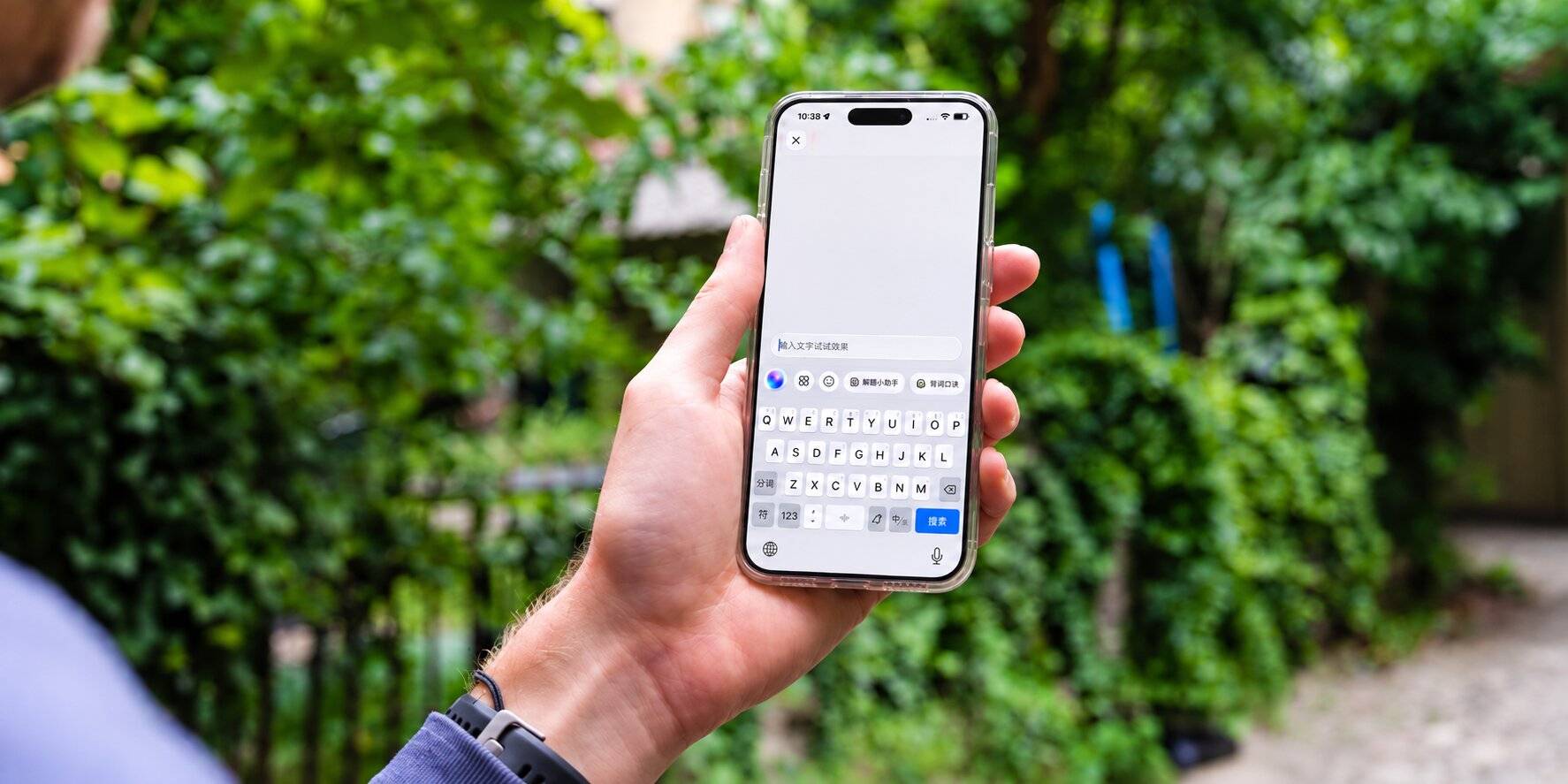
最近把主力输入法升级到讯飞输入法 16.0.1 后,我发现这个设想已经开始变成现实。
新发布的第三代语音输入「意图成稿」与个性化 AI 键盘,把信息整理、长程记忆和场景技能装进 AI 键盘,让用户只需说出意图,就能得到一份可以直接修改和使用的草稿。
当一块键盘终于学会迁就人的偷懒、口误与词穷,日常沟通到底能省掉多少麻烦?我直接拿职场与生活里最折磨人的几个场景做了一轮实测。
以前「人迁就机器」最累的地方,在于键盘没有记性——信息散落在群聊、截图和小程序里,每换一个聊天对象,你就得来回切屏、重复粘贴。
而在讯飞输入法 16.0 的「意图成稿」里,键盘学会了主动替人记事:只要用它处理过一次文本或截图,后台就会自动提炼出时间、人物与要求,存成「任务级信息卡片」。之后在任务期间切去任何聊天框,只需点开键盘顶部的「交给 AI」说句简短意图,它就能自动带入刚才的信息与你的「长程记忆」偏好,直接把成稿送进输入框。
双十一筹备期,老板王总突然发微信问会员商城改版准备得怎么样了。换作以前得先翻专项群再查飞书表,现在只需要把信息交给键盘,再说一句话就能交卷。
我先截下飞书群里的项目进度与宣发排期表,里面包含支付链路压测完成、优惠券弹窗待修复、明天下午演练及周五零点上线等信息,再切回老板微信框,打开「交给 AI」说:「根据我刚刚的截图,帮我向老板汇报一下目前会员商城改版进度,表达要客气。」
紧接着,键盘就生成了一段结构清晰的汇报,既交代了整体进度,也把测试结果、待修复事项和上线排期整理得明明白白。
更有意思的是,讯飞输入法还按照我的个人汇报习惯组织了内容。因为此前我曾通过「交给 AI」交代过,以后给老板汇报要先说结论,再分点列核心进展和待办,控制在 150 字以内,语气干脆专业。
键盘当时就表示已经记住了这个要求。如今再次汇报,它便能结合长期记忆里的个人表达偏好组织内容,省去了每次重新交代写作要求的麻烦。
看到这里,可能有人想知道,AI 键盘到底怎么开启?其实只需要设置一次。
将讯飞输入法升级到 16.0.1 并设为手机默认输入法,在任意聊天框唤出键盘,点击左上角带有「讯」字的按钮,在展开的功能菜单中滑动到底部,找到并开启「AI 键盘模式」。
开启后,除了可以长按底部空格键进行日常语音输入,键盘左上角还会出现一个五彩缤纷的 AI 按钮。点击它,就能直接用语音或文字说出自己的意图,让键盘帮忙理解信息、组织内容并生成回复。
这里有个值得提醒的操作细节,Android 和 iOS 的截图读取方式有所不同。
Android 用户手动截图后,在一分钟内打开「交给 AI」,说出「根据我的截图」并附上具体要求,系统便可自动读取最近的一张或多张截图。如果需要使用相册里的旧图片,则可以说「上传截图」,调出上传入口后手动选择。
iOS 用户需要先对「交给 AI」说出「根据我的截图」或「根据我的图片」,等待上传入口出现,再选择对应截图或相册图片,最后交给 AI 生成内容。两种方式都能实现看图理解,区别主要在于截图如何交给键盘。
在职场跨聊天框协同里充当二传手,更是检验这套记忆力的修罗场。
法务在群里发来星海科技年度服务合同的三条修改要求,首付款从 30% 调到 50%,即 15 万元;逾期交付违约金上限不超过合同总额的 10%;周四下午 5 点前还必须收到重新盖章的扫描件,以赶上周五打款。
我先复制法务原话,随后打开客户林总的微信框,直接让键盘客气诚恳地写一条合同修改说明。生成的消息既交代了具体金额、比例和截止时间,也照顾到了对外沟通的语气。
发完客户,再切到内部财务的聊天框,只需提一嘴同步一下星海科技最新打款金额和交件时间,键盘就换成干练的内部沟通方式,把 15 万元首付及周四下午 5 点交件等信息整理成另一条消息,全程不用重新粘贴合同背景。
Android 部分机型会自动开放粘贴权限,其余机型需要手动允许;iOS 则需要开启讯飞输入法键盘的「允许完全访问」,并在系统设置中将「从其他 App 粘贴」设为「允许」。
比如在广州的医院小程序帮弟弟预约了周五上午 8 点的阻生智齿拔除,地点是中山大学附属口腔医院陵园西路院区。面对页面上密密麻麻的就诊须知,我只需要截图后打开弟弟的微信框,交给「交给 AI」说:「根据这张图提醒我弟周五看牙的时间、准备事项,告诉他我会陪他一起去,语气自然点。」
键盘就能根据截图中的预约信息和注意事项生成一条提醒。随后切到主管的聊天框,再让它按照陪弟弟拔智齿的原因写一条周五上午半天事假申请,连医院和请假背景都不用重新解释。
任务记忆还可以用于后续的文字联想,比如在打车软件里输入已经记录过的医院名称时,键盘能够提供相关候选词,减少重复查找的麻烦。实际导航时,仍需要核对医院地址与具体院区。
过去只能硬凑几句「味道不错、分量很足」,现在打开大众点评或美团的评价框,点击「交给 AI」上传刚拍的菜品照片,说一句「这是我刚刚吃的饭,写一段好评」,键盘便能根据照片识别菜品,生成一段评价草稿,实际口味和服务体验再按真实感受调整即可。
从给老板汇报,到帮家人安排看牙,再到饭后写点评,看似八竿子打不着的事情,其实都指向同一个变化。过去我们负责搜集信息、组织语言、手动录入,键盘只管打字,如今连前面那些繁琐的准备工作,都开始有人替你操心了。
人类迁就机器的第二桩苦役,是按住语音键之前那几秒钟的腹稿焦虑。现实里没人说话字字珠玑,边想边说、中途改口才是人类的出厂设置。
讯飞输入法 16.0.1 全面升级了语音底座,让语音输入开始适应这种真实的说话方式。
想体验边说边改,Android 用户需要进入讯飞输入法 App 的「设置 \> 语音输入」,同时开启「AI 语义修正」和「口令编辑」;iOS 用户目前可以开启「AI 语义修正」,完整的「口令编辑」功能还需要等待后续版本更新。
比如单手拎东西走在路上给快递员发消息,话说到一半突然想起地址和收件人都弄错了。
我在 Android 端长按空格键,故意先把寄件地址说成杭州滨江区网商路,接着改口为萧山区钱江世纪城博地中心,收件人也从李娜改成张伟,最后纠正成「王字旁那个玮」,再叮嘱相机需要保价 5000 元。
整个过程中,当我说出「记错了,改成」「不对,换成」等指令时,键盘会实时替换此前识别出的内容。松开空格键后,输入框里只留下正确的地址、收件人王玮和保价金额,那些反复改口的口水话都被自动清理了。
除了边说边改,Android 端还有一个值得体验的操作。长按空格键完成语音输入后,手指先别松开,继续向左上方滑动到「AI 优化」入口再松手,键盘就能进一步润色刚才识别出的口语内容。
出门碰上商场地铁的嘈杂背景音,或者在办公室隔间里只敢压低声音说话,同样是语音输入的传统死穴。
此次 16.0 接入了最新的 Spark-ASR-2.0 语音识别大模型。官方数据显示,它支持 202 种方言及相关口音,方言识别准确率由 85% 提升至 91%,高噪环境下识别准确率从 66% 跃升至 84%,中英混说场景下的英文槽准率更是从 33% 提升到了 80%。
支撑这次语音输入代际升级的,是科大讯飞持续自主研发的语音技术与星火大模型,以及从底层模型到应用能力的全栈自主可控技术体系。通过端云协同,将大模型的理解、记忆与内容生成能力融入手机键盘,也让新一代人机交互从技术演示走向普通人每天都在使用的生活场景。
我在嘈杂商场里压低声音念了一段技术沟通消息,内容涉及 NAS 服务器的 Docker 容器、Firmware 升级、SMB 协议以及防火墙 block 端口等问题。
识别结果正确保留了 NAS、Docker、Firmware、SMB 和 block 等英文专业词汇,大小写形式也基本符合原本的表达。对于经常需要在中文句子里夹几个英文缩写的人来说,终于不用再给语音识别结果做一遍人工翻译了。
解决了找资料和嘴瓢改字,可要是碰上职场甩活、合租扯皮或者跨圈层社交,脑子里一片空白不知道怎么开口,机器又该怎么迁就人?
古希腊哲人常把修辞术视作城邦公民的重要能力,而在当代社会,得体的措辞就是成年人的社交防弹衣。
讯飞输入法 16.0 把键盘改造成了可自由组装的个性化 AI 键盘,超过 15 万名创作者攒出了 30 万个表达技能,覆盖上万个细分场景,官方称超 60% 的用户已经参与塑造自己的专属键盘。
从教育、办公到游戏社交,这套由用户与开发者共同丰富的智能体生态,使得输入法有机会摆脱厂商预设功能的限制,让不同行业的真实需求反过来决定 AI 键盘应该长成什么样,也让国产 AI 应用的未来拥有了更多由真实需求推动的创新可能。
临近下班,自己手头的季度复盘报告还没写完,隔壁部门同事却突然发微信求救,想让我今晚帮忙制作 5 页竞品参数对比表,明早就要用于渠道商培训。
直接回没空怕伤和气,应下来自己就得通宵。我复制同事原话,点开键盘顶部技能坞里的「高情商沟通」,交代今晚实在没空,但可以先把旧版参数文档发过去,明天下午再帮忙核对,键盘便生成了一段既亮明底线、又给足台阶的回复草稿。
换到合租生活,面对室友阿凯拖欠上个月平摊的 260 块电费、出门忘关客厅空调,或者热水器自然老化坏掉、房东却要求 300 块维修费一人一半的拉锯战,同样可以点开「高情商沟通」,输入自己的诉求,让 AI 帮忙组织既讲道理又不伤和气的消息。
晚上在游戏群找人开黑,可以使用「游戏搭子速配」生成懂黑话、有氛围感的组队文案;惹伴侣生气不知道怎么道歉,可以调出「恋爱军师」帮忙组织措辞;就连小学外甥发来一道不允许用方程解答的盈亏应用题,也能交给「解题小助手」,生成适合小学生理解的算式推导。
实际使用时,除了直接从技能坞选择功能,还可以在讯飞输入法 APP 首页的智能体一栏里,添加你想要的技能。
比如我平时经常写稿、回复工作消息,就可以把「高情商沟通」「写作达人」和常用的信息处理技能集中在一起。长按键盘上的技能键,即可进入管理入口添加常用技能,并在「简洁模式」和「活力模式」之间切换。
简洁模式让键盘保持清爽,活力模式则会显示更丰富的技能介绍,对不熟悉功能的用户更友好。同样一组技能,可以按照个人使用习惯选择不同的呈现方式。
以前我们为了适应输入法,得记住一堆操作路径。如今连键盘上的功能组合,都开始允许用户按照自己的生活方式重新安排。
解决完这些效率问题,我原本以为讯飞输入法 16.0 的更新已经差不多了,没想到它还往键盘里塞了一只会陪人敲字的小动物。
讯飞输入法在行业内首创的「键盘搭子」,让传统键盘皮肤有了动态陪伴的能力。在 Android 手机上升级到 16.0.1 后,进入讯飞输入法 App 首页精选,选择「键盘搭子」,就能挑选自己喜欢的角色。
我选的是「球小煤」,一只圆滚滚的小黑猫。赶稿时我在键盘上疯狂敲字,它也抱着小电脑一起忙活;停下来发呆,它就趴在键盘上休息,摇一摇手机还能让它挪到其他角落。输入「开心」「摸摸」「呜呜呜」等关键词时,小黑猫还会跟着变换表情,时而咧嘴笑,时而委屈巴巴地挂上两行猫泪。
虽然工作群里的催稿消息还是得自己回,但看着小煤球陪着敲键盘,多少有种多养了一只赛博宠物的感觉。页面里还有陪伴天数、亲密度养成和装扮兑换机制,日常打字就能积累亲密度,比起专门打开一款宠物游戏,每次回消息时随手撸一把猫,反倒更适合打工人的碎片时间。
传统输入法早就有各种皮肤、字体和主题,但它们大多停留在静态装饰。如今,键盘搭子让装扮变成了能随着用户输入产生反馈的互动体验,也让这块每天打开无数次的工具,在追求效率之外,多了一点陪伴的温度。
测完上面几个场景再回头看,你会发现讯飞输入法 16.0 最打动人的